
Email Writer (Email Templates)
How to write emails automatically to your leads
Write emails turns a search into a personal email for every business on it that has an email address. You write a short template once, and the app fills in each business’s name, city, Google rating and more.
The app never sends anything. You copy each email into your own mailbox (Gmail, Outlook or any other) and send it yourself, so replies come straight to you.
It takes four steps. Steps 1 to 3 you do once; step 4 every time you want to write to a new list.
Step 1: Add your details (once)
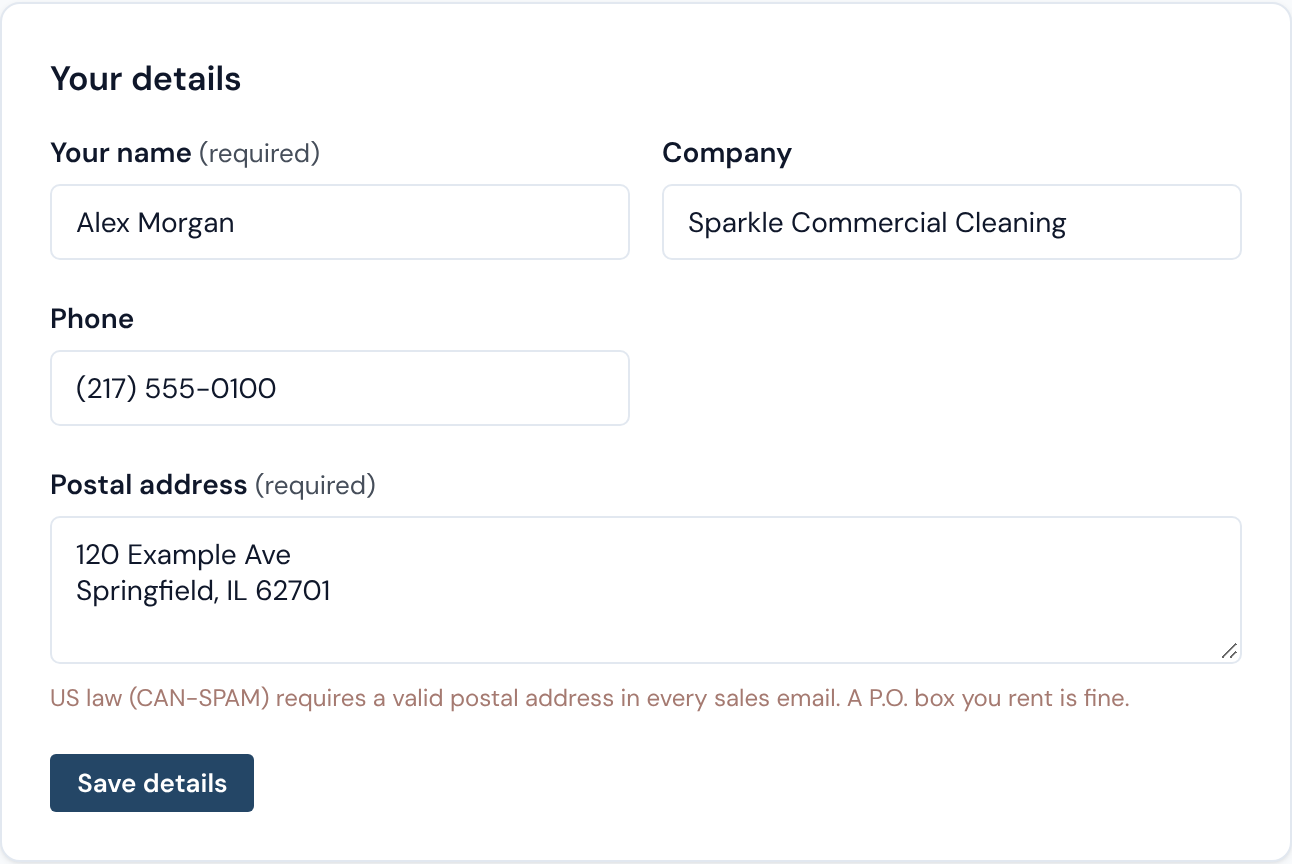
Open Email templates in the left menu. At the top is Your details.
- Your name and Postal address are required. US law asks for a real postal address in every sales email, so the app won’t show any emails until it has one. A P.O. box is fine.
- Company and Phone are optional, but they make you look like a real local business, so fill them in.
Click Save details. From now on, every email ends with your name, company, phone, address and a short line saying how to opt out. You never have to type your signature again, and you can’t forget it.
How placeholders work
A placeholder is a word in curly brackets that the app swaps for real information about each business. Think of it as a blank on a form: you write the sentence once, and the app fills in the blank for every business on your list.
You write:
{business_name} has a {rating}-star rating from {reviews} Google reviews.
Maple Street Dental gets:
Maple Street Dental has a 4.8-star rating from 214 Google reviews.
Lincoln Family Dentistry gets:
Lincoln Family Dentistry has a 4.6-star rating from 87 Google reviews.
Type placeholders exactly as shown below, with the curly brackets and the underscore. On the Email templates page you can also click a placeholder in the Placeholders box (in right sidebar) to insert it where your cursor is.
| Type this | It becomes | Example | Works in |
|---|---|---|---|
| {business_name} | The business’s name | Maple Street Dental | Subjects and messages |
| {category} | The type of business, as Google Maps lists it | Dentist | Subjects and messages |
| {city} | The city from the business’s address | Springfield | Subjects and messages |
| {rating} | Its Google star rating | 4.8 | Messages |
| {reviews} | How many Google reviews it has | 214 | Messages |
| {website} | Its website address, without https:// | maplestreetdental.com | Messages |
| {category_line} | The sentence you wrote for this type of business (Step 3) | Dental offices need careful disinfection… | Messages |
| {my_name} | Your name | Alex Morgan | Messages |
| {my_company} | Your company | Sparkle Commercial Cleaning | Messages |
| {my_phone} | Your phone number | (217) 555-0100 | Messages |
What if a business is missing something? Not every business has a rating or a website. You don’t have to plan for that:
- In a message, any line with a missing piece is simply left out of that business’s email. Nobody gets “a -star rating”. Keep a sentence that uses {rating} or {reviews} on its own line, so only that sentence disappears.
- In a subject, the app uses “Question for (business name)” instead, and marks that email so you can see it happened.
- {city} only works for US addresses.
Step 2: Write your subjects and messages
Subjects and messages are kept in two separate lists. When you write emails, you pick one subject and one message, so you can try any subject with any message and see which pair works best for you.
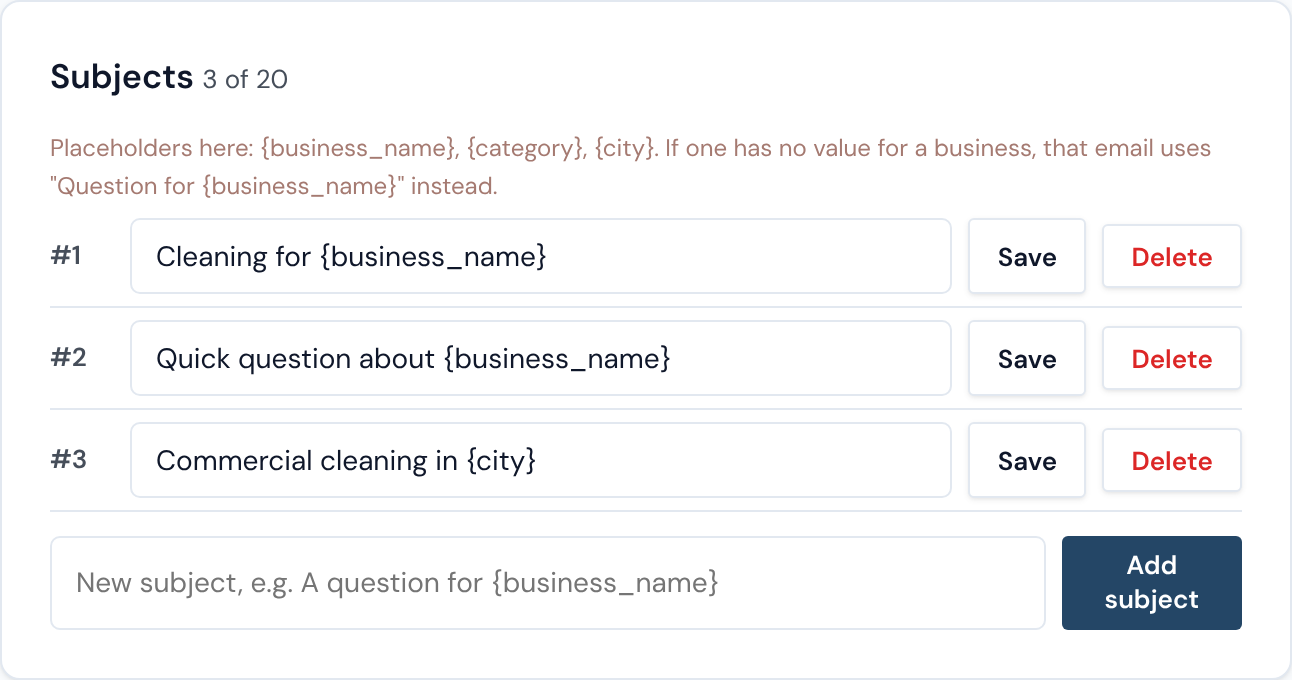
Your account starts with 3 ready-made subjects and 3 ready-made messages. Use them as they are, change them, or delete them. You can keep up to 20 subjects and 10 messages.
Subjects. Type a subject in the box and click Save (or Add subject for a new one). Subjects can use three placeholders: {business_name}, {category} and {city}.
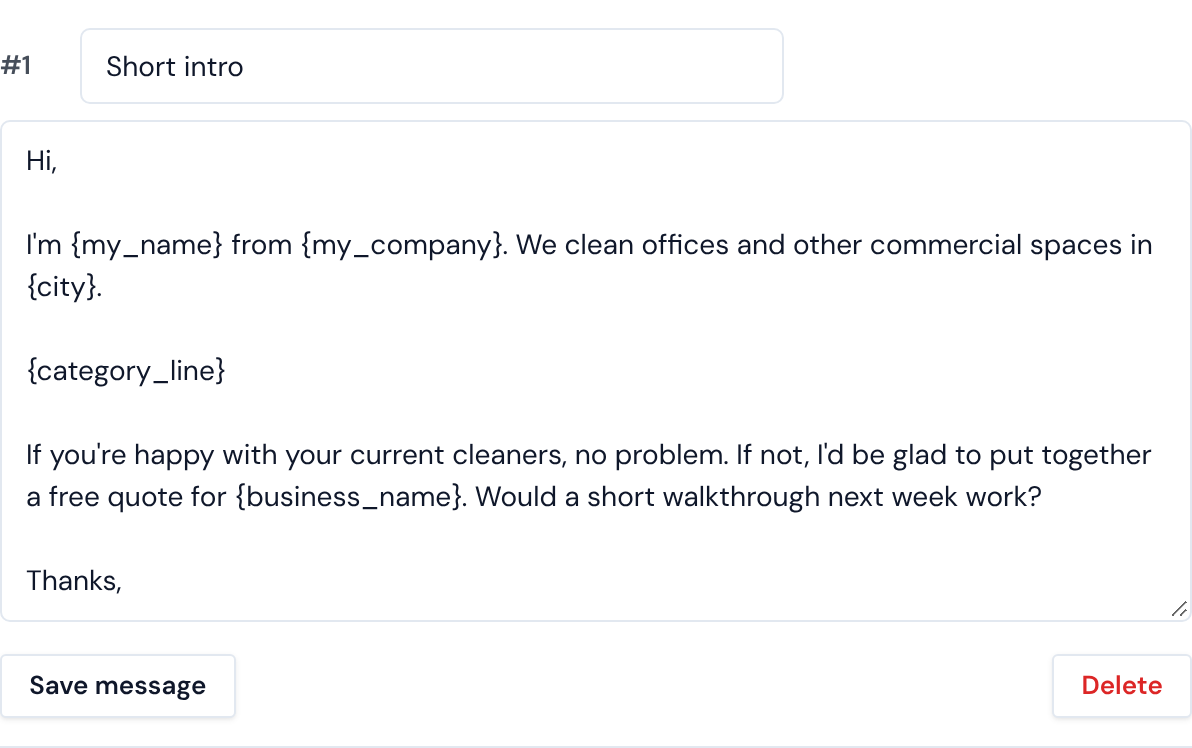
Messages. Each message has a short name that only you see, such as “Short intro”, and the text itself. Click Add a message to write a new one, then Save message.
Tips for a good message:
- Start with a greeting, end with a sign-off such as “Thanks,” and stop there. Your name, company, phone, address and the opt-out line are added below it automatically.
- Keep it short: three or four short paragraphs read better than one long one.
- Put each sentence that uses {rating}, {reviews} or {category_line} in its own paragraph, so it can be left out cleanly when a business has no rating.
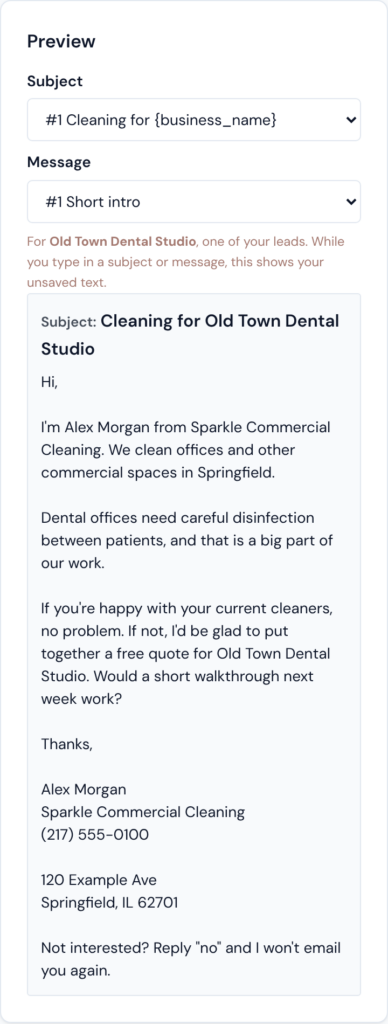
Check it before you use it. The Preview box on the right shows how a subject and message look for one of your real leads. While you type, it updates with your unsaved text, so you see mistakes straight away. If you misspell a placeholder, for example {buisness_name}, the app tells you when you save, so a typo never reaches a customer.
Step 3: Write a sentence for each type of business
A business office and a gym care about different things. This step lets one message say the right thing to each: you write a sentence per type of business, and wherever your message says {category_line}, each business gets the sentence for its type.
On the Email templates page, scroll to Sentences per business type. Your account may already have a few example rows you can change or delete. Each row has two boxes:
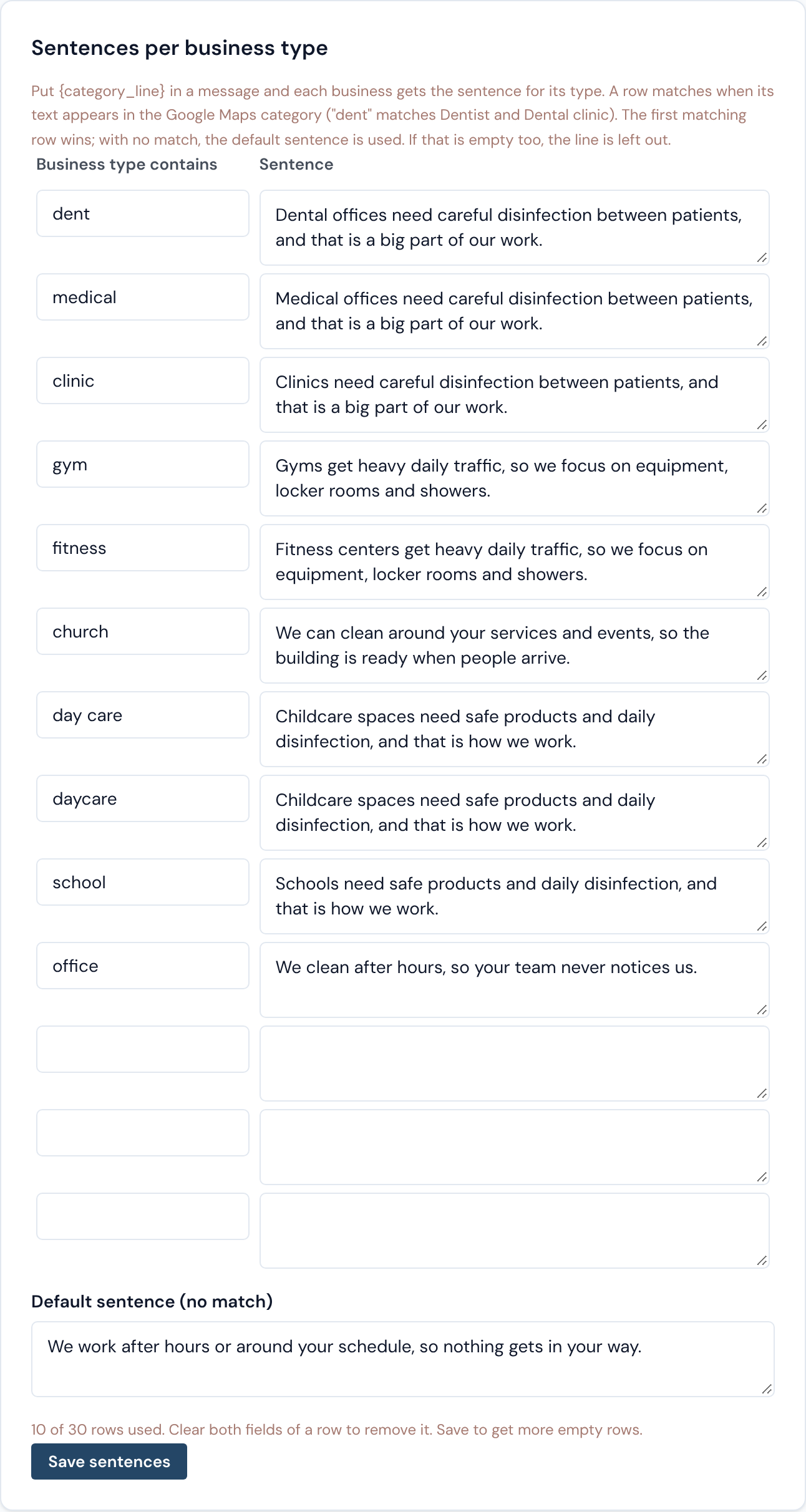
- Business type contains: a word, or part of a word, from the business type Google Maps shows.
- Sentence: what businesses of that type should read.
The app looks for your word inside the business type. “dent” matches both “Dentist” and “Dental clinic”. “gym” matches “Gym” and “Gymnastics center”.
| Business type contains | Sentence | Who gets it |
|---|---|---|
| dent | Dental offices need careful disinfection between patients, and that is a big part of our work. | Dentist, Dental clinic, Pediatric dentist |
| gym | Gyms get heavy daily traffic, so we focus on equipment, locker rooms and showers. | Gym |
| office | We clean after hours, so your team never notices us. | Insurance office, Real estate office |
A few things to know:
- The first matching row wins. Put the most specific words near the top.
- Default sentence. If no row matches, the business gets your default sentence. If you leave the default empty, the line with {category_line} is left out of that email.
- One sentence, one line. Each sentence stays on one line in the email, and the box ignores the Enter key.
- Up to 30 rows. To remove a row, clear both boxes. Click Save sentences when you are done. More empty rows appear after each save.
Step 4: Compose the emails for a search
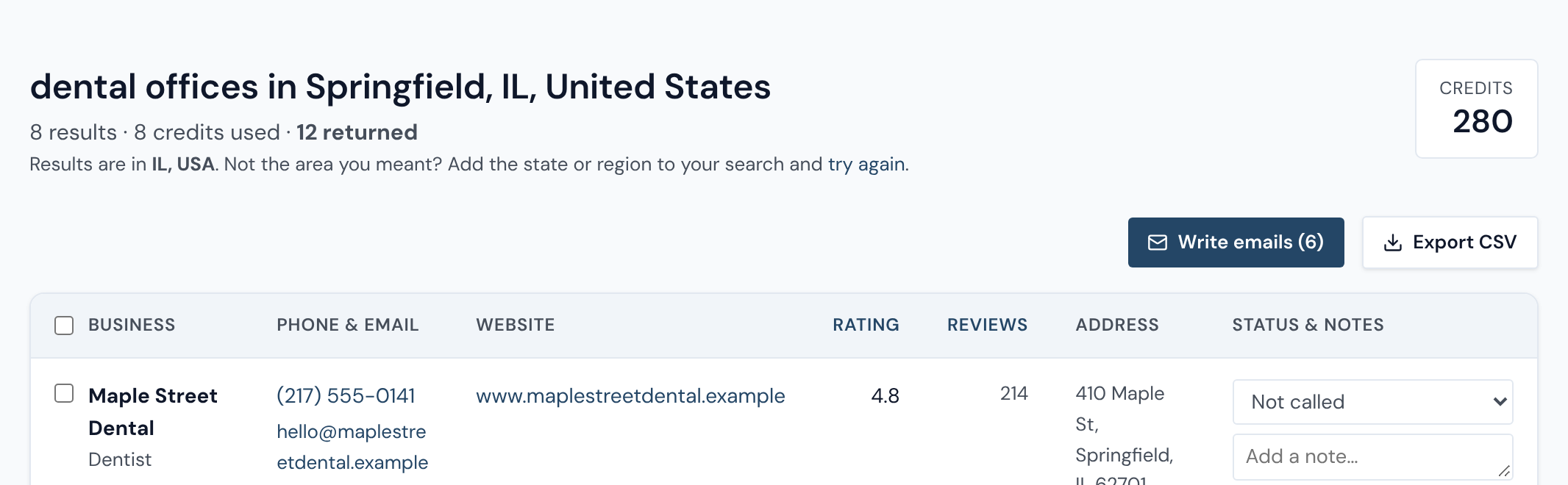
- Open a search. Run a new search, or open an old one from Searches in the left menu. If any business in it has an email address, you’ll see the Write emails button above the results, with the number of businesses you can write to.
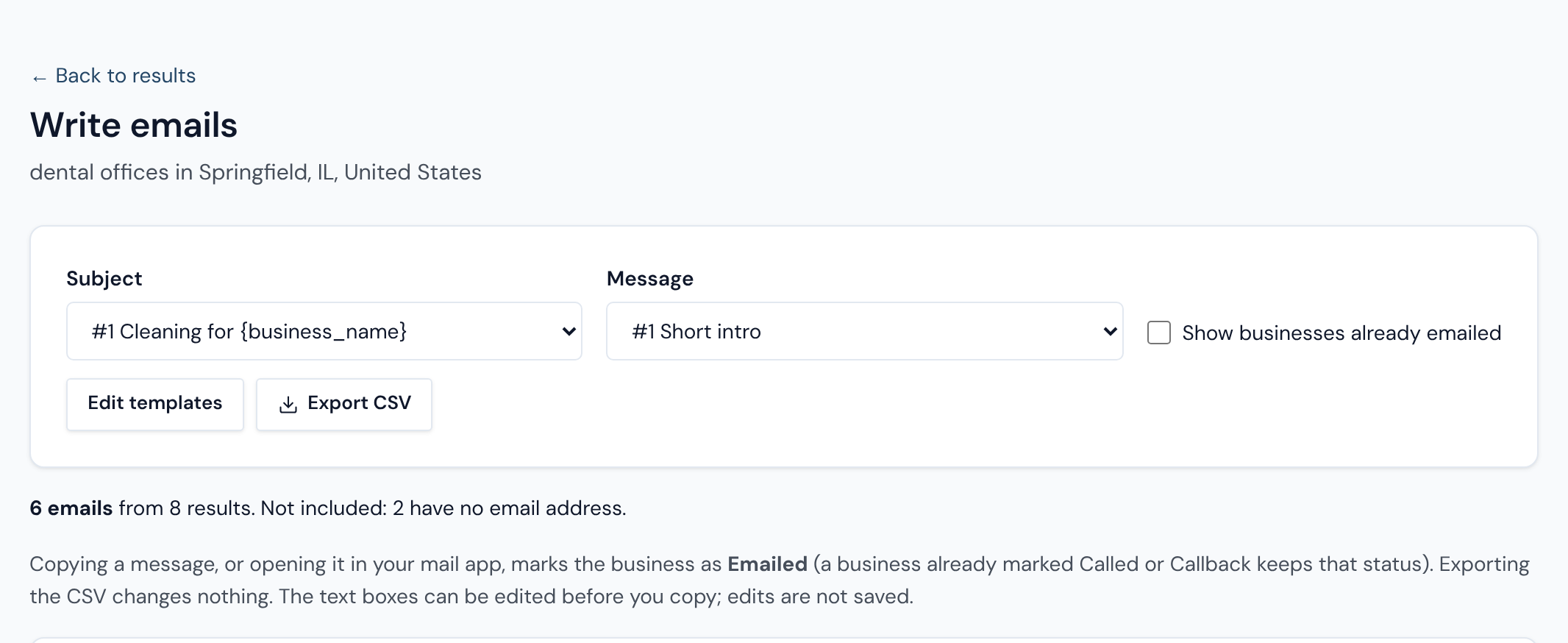
- Click Write emails. You get one ready email per business that has an address.
- Pick a subject and a message. Use the two drop-down menus at the top. Every email on the page changes as soon as you pick. The app remembers your choice for next time.
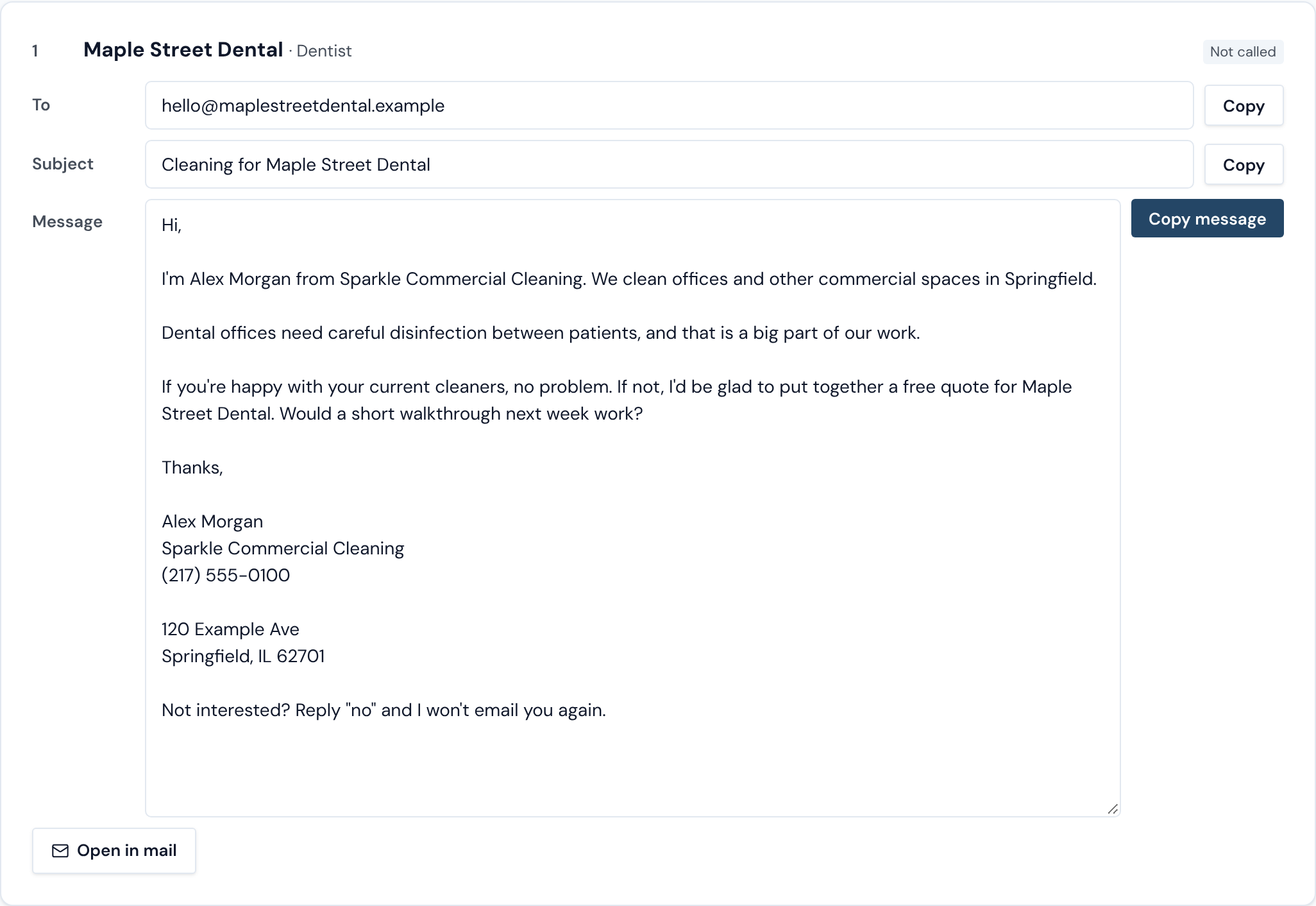
- Send each email from your own mailbox. Every business has its own card with three boxes, To, Subject and Message, each with its own Copy button:
- Copy each box and paste it into a new email in Gmail, Outlook or any other mail program, or
- click Open in mail to open a new email that is already filled in. It opens in a new tab, so this page stays where you left it.
- Change one email if you like. You can edit the text in the boxes before copying, for example to add a personal sentence. These edits are not saved; to change every email, edit the template instead.
Prefer a mail-merge tool such as GMass or Mailmeteor? Click Export CSV to download the whole batch (to, subject, message) as a spreadsheet.
Keeping track: who you already emailed
When you click Copy message or Open in mail, the app marks that business as Emailed. The card shows “Marked as Emailed. Undo“. Click Undo if you copied it but didn’t send it.

- A business you already marked Called or Callback keeps that status, so copying never overwrites a phone conversation.
- Copying only the To or Subject box doesn’t change anything, and neither does Export CSV.
- Next time you open the same search, businesses already marked Emailed are hidden, so you can send part of a list today and carry on tomorrow. Tick Show businesses already emailed to see them again.
- You can change any status yourself on the search results or in Saved leads, for example to Not interested when someone replies “no”.
Why some businesses aren’t on the page. The line above the emails tells you how many were left out and why:
| Left out because | What it means |
|---|---|
| No email address | Google Maps and the business’s website didn’t give us one. Call them instead. |
| Shares an address with a business above it | Two branches of one company use the same email. Only the first gets an email, so nobody receives the same pitch twice. |
| Marked Not interested, Wrong number or Won | You already have an answer from them. |
| Already marked Emailed | Hidden until you tick Show businesses already emailed. |
Email addresses are found for US searches only, and only where the business lists one, so expect some businesses in every search to have none.
Good practice and the rules
In the US, sales emails to businesses fall under a law called CAN-SPAM, and it applies to emails between businesses too. In plain words, it asks you to:
- send from your real name and address, with an honest subject line;
- include your postal address (the app adds it for you);
- tell people how to opt out (the app adds “Not interested? Reply ‘no’ and I won’t email you again.”);
- stop emailing anyone who opts out, within 10 business days. When someone replies “no”, mark them Not interested so they never appear in a batch again.
The official guide is the FTC’s CAN-SPAM Act: A Compliance Guide for Business. This page is general information, not legal advice.
A few habits that help your emails get read:
- Send a few at a time, spread over the day, rather than all at once, especially from a new email address.
- Read the first email of each batch before sending, to make sure the placeholders filled in the way you expect.
- Make each email true for the business you send it to. If a sentence doesn’t fit one business, edit it in the box before copying.
Questions
Does the app send emails for me? No. You always send from your own mailbox, and replies come to you.
Do I pay credits to write emails? No. Writing emails is included on every plan, including Free. Credits are only used by searches.
Why doesn’t every business have an email? Addresses are found on the business’s own website, and many small businesses don’t list one. Email addresses are included for US searches only.
I changed a template. Do I need to do anything? No. Open the batch again and every email uses the new text.
Can I see which subject or message got the most replies? Not yet. For now, keep track by using statuses such as Callback and Won.